
Tech HelpHow-To
How to Secure Your Home Wi-Fi Network
Change default passwords, turn on WPA3 and keep your router updated.
This guide is general information. For medical, legal, financial or safety decisions, consult a qualified professional.
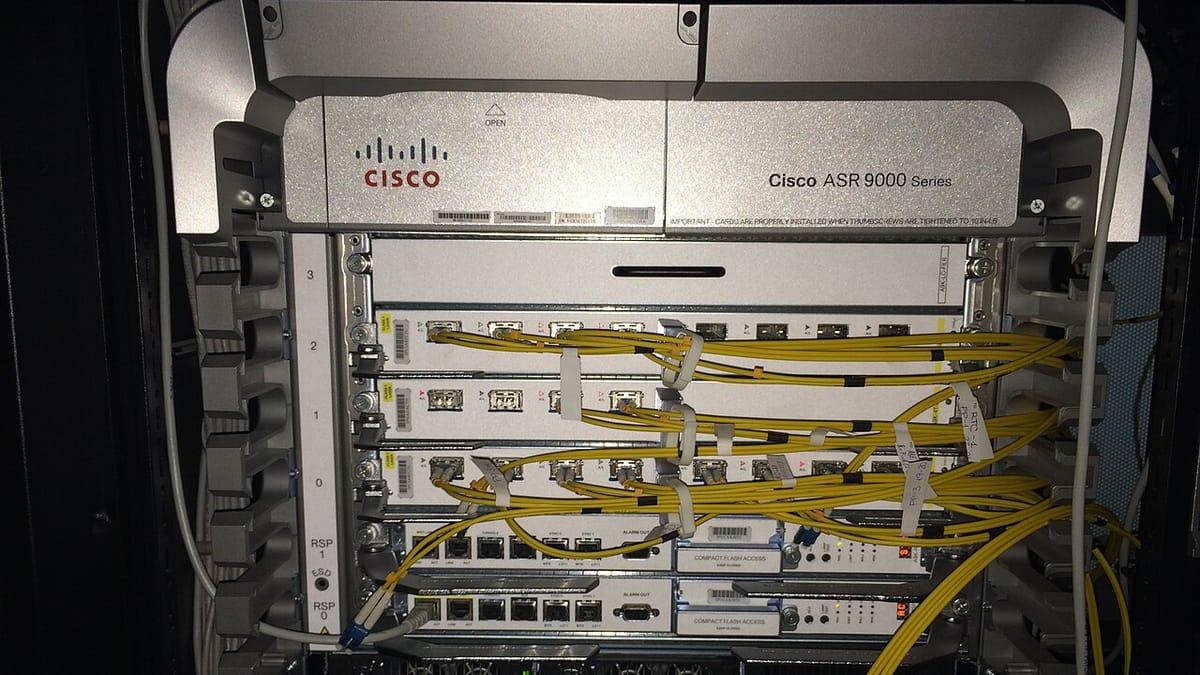
In brief: Your router is the gateway to every device in your home. An unsecured network can let neighbors use your internet or let attackers reach your devices. Most of these steps take a few minutes in the router's settings page or app.
Steps
- Log in to your router. Use the router's app or type its address, often printed on a label, into a browser.
- Change the admin password. Replace the default administrator password with a long, unique one.
- Use strong encryption. Choose WPA3, or WPA2 if WPA3 is not available. Never use WEP or an open network.
- Set a strong Wi-Fi password. Use a long passphrase that is different from the admin password.
- Update the firmware. Install router updates and turn on automatic updates if available. Replace routers that no longer receive updates.
- Turn off WPS and remote management. Disable features you do not use, which reduces ways in.
- Create a guest network. Give visitors and smart home gadgets their own network separate from your computers and phones.
Tips
- Rename the network so it does not reveal your name or address.
Frequently Asked Questions
What is WPA3?
The latest Wi-Fi security standard, which offers stronger protection against password guessing than WPA2.