
Tech HelpHow-To
How to Clean a Laptop Screen and Keyboard Safely
Remove smudges, dust and crumbs without damaging the display.
This guide is general information. For medical, legal, financial or safety decisions, consult a qualified professional.
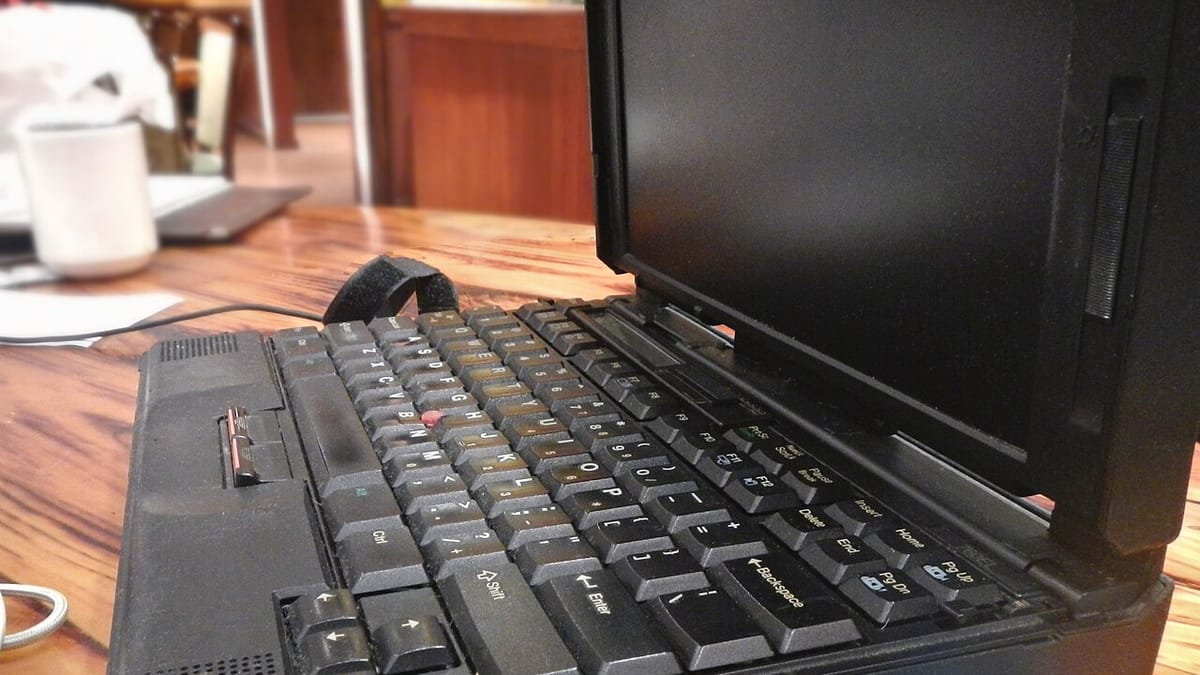
In brief: Laptops collect fingerprints, dust and bacteria. Harsh cleaners such as ammonia or window spray can strip screen coatings, so gentle methods are best. Check your manufacturer's guidance for specific models.
What you'll need
- Microfiber cloth
- Distilled water or a screen-safe cleaner
- Compressed air
- 70 percent isopropyl alcohol wipes for keys, if your maker permits
Steps
- Shut down and unplug. Turn the laptop off, unplug it and let it cool.
- Dust the screen. Wipe gently with a dry microfiber cloth in one direction.
- Clean smudges. Lightly dampen the cloth, not the screen, with distilled water or screen cleaner and wipe softly.
- Clear the keyboard. Tilt the laptop and use short bursts of compressed air between keys.
- Disinfect the keys. Wipe keys and touchpad with a lightly dampened cloth or alcohol wipe if the manufacturer allows, avoiding excess moisture.
- Let it dry. Wait until everything is completely dry before turning it back on.
Warnings
- Never spray liquid directly onto the screen or keyboard, and avoid paper towels, which can scratch.
Frequently Asked Questions
Can I use Windex on a laptop screen?
Avoid ammonia-based window cleaners, which can damage anti-glare coatings.